Global Bilgi RPA (EN)

PowerPoint

PowerPoint

Aktiviteler

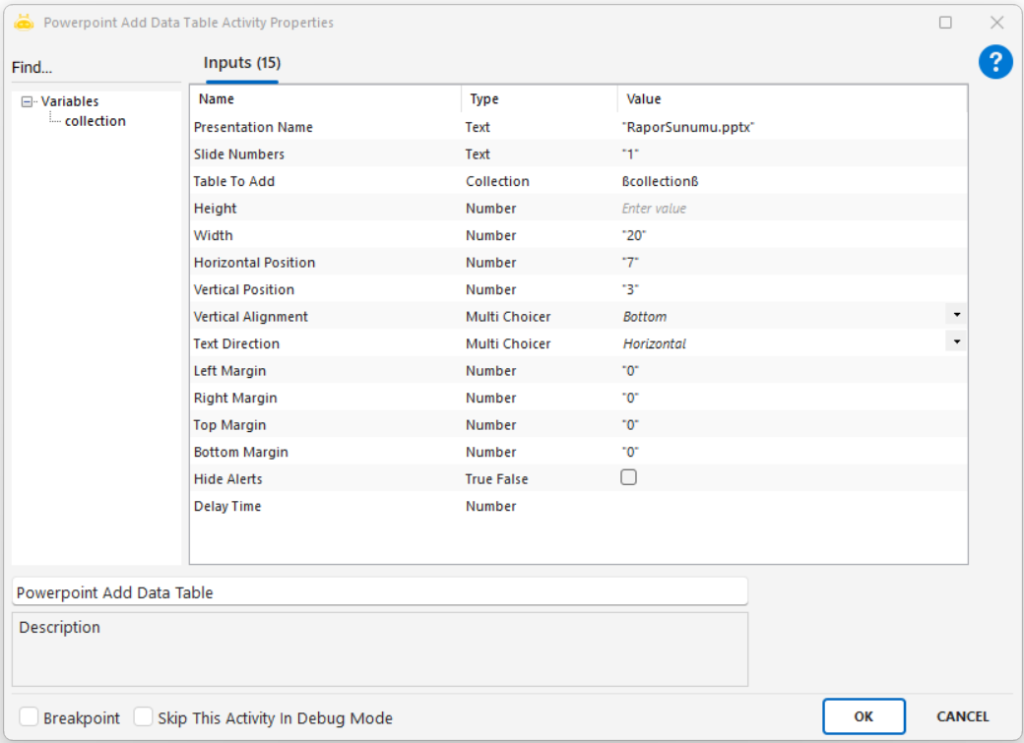
PowerPoint Add Data Table

PowerPoint Add Table activity is used to insert a Collection-based data table into a specific slide within a PowerPoint presentation. Table size, alignment settings, and on-slide positioning can all be configured in detail.

Usage Scenarios:

  • Adding dynamically generated data tables into report presentations

  • Presenting process data in a visual, slide-based format

  • Displaying analysis, KPI, or performance tables in visual reports

Parameters:

  • Presentation Name: Name of the PowerPoint file to be modified (for example: Presentation1.pptx)

  • Slide Numbers: Slide number(s) where the table will be inserted (for example: 1)

  • Table To Add: Collection variable containing the data table to insert

  • Height: Height of the table

  • Width: Width of the table (for example: 20)

  • Horizontal Position: Horizontal placement on the slide (for example: 7)

  • Vertical Position: Vertical placement on the slide (for example: 3)

  • Vertical Alignment: Vertical alignment of the table (Top, Middle, or Bottom)

  • Text Direction: Text orientation (Horizontal or Vertical)

  • Left Margin: Left margin (for example: 0)

  • Right Margin: Right margin (for example: 0)

  • Top Margin: Top margin (for example: 0)

  • Bottom Margin: Bottom margin (for example: 0)

  • Hide Alerts: Whether alert messages should be hidden (true/false)

Notes:

  • The Collection data must be structured correctly

  • Multiple slide numbers must be separated by commas

  • Margin and size values must be proportional to the PowerPoint layout

  • Text direction and alignment may affect the visual appearance of the table

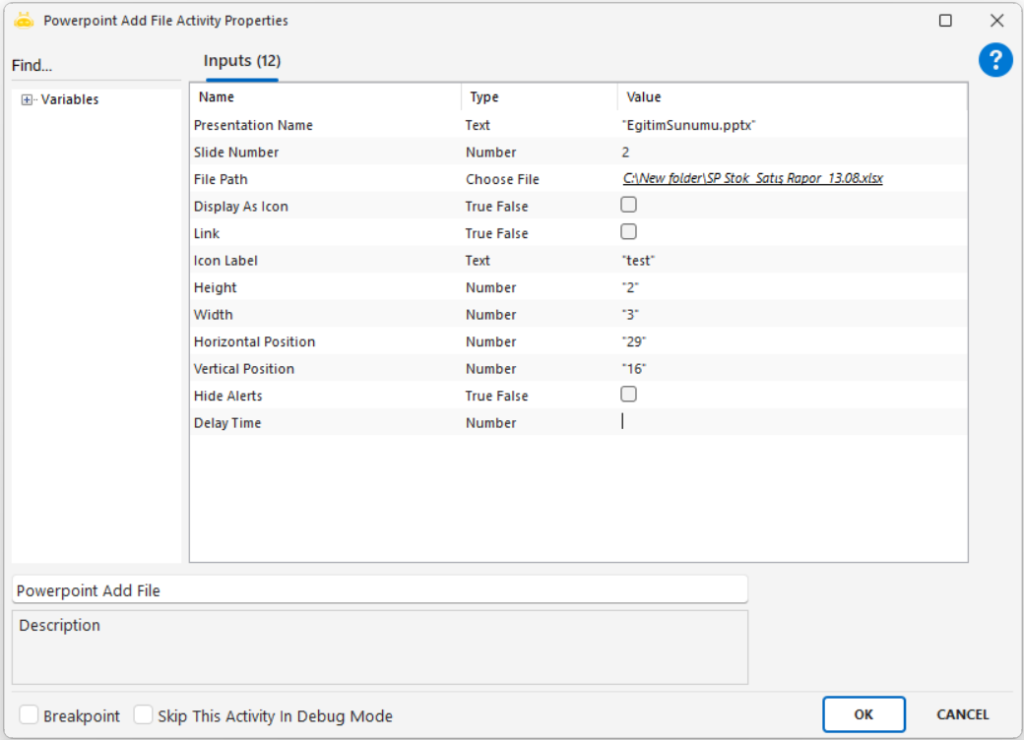
PowerPoint Add File

PowerPoint Add File activity is used to insert a file into a specific slide within a PowerPoint presentation. The inserted file can be displayed as an icon, and properties such as position, size, and label can be configured.

Usage Scenarios:

  • Adding supplementary documents, references, or PDF files to presentations

  • Embedding supporting materials into training slides

  • Placing file links at specific positions on a slide

Parameters:

  • Presentation Name: Name of the PowerPoint file (for example: Presentation1.pptx)

  • Slide Number: Slide number where the file will be inserted (for example: 1)

  • File Path: Full path of the file to be inserted (for example: C:\New folder\örnek.pdf)

  • Display As Icon: Whether the file should be shown as an icon (true/false)

  • Link: Whether the file should be added as a link instead of embedding (true/false)

  • Icon Label: Text displayed below the icon if shown as an icon (for example: TEST)

  • Height: Height of the inserted object (for example: 2)

  • Width: Width of the inserted object (for example: 3)

  • Horizontal Position: Horizontal position on the slide (for example: 29)

  • Vertical Position: Vertical position on the slide (for example: 16)

  • Hide Alerts: Whether alert messages should be hidden (true/false)

Notes:

  • Using Turkish characters in file paths may cause compatibility issues

  • Slide Number must correspond to an existing slide in the presentation

  • If Delay Time is left empty, the default value is applied

  • The file is embedded into PowerPoint; if a link is desired, the Link parameter must be set to true

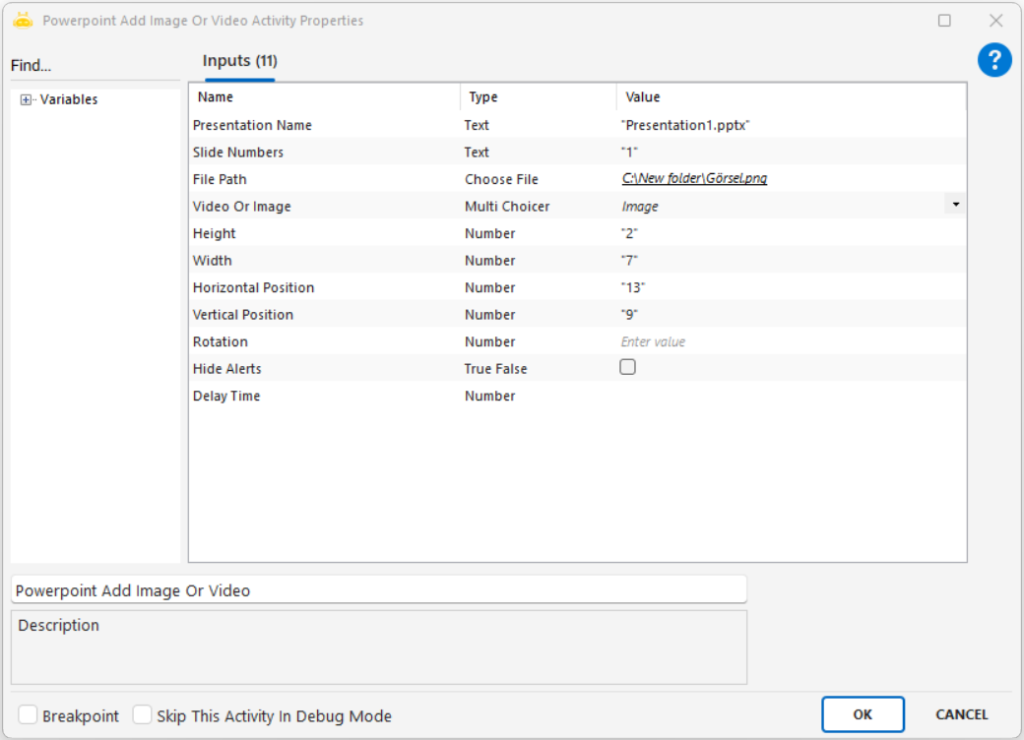
PowerPoint Add Image Or Video

PowerPoint Add Media activity is used to insert an image or video into a specific slide in a PowerPoint presentation. Properties such as position, size, and rotation of the added media can be adjusted.

Usage Scenarios:

  • Adding visuals like graphics, logos, or screenshots to a presentation

  • Placing promotional or training videos on a slide

  • Enhancing narration with visual content

  • Supporting data presentations with media elements

  • Showing product, process, or system demonstrations

Parameters:

  • Presentation Name: Name of the PowerPoint file (for example: Presentation1.pptx)

  • Slide Numbers: Slide number where the media will be inserted (for example: 1)

  • File Path: Full path of the media file (for example: C:\New folder\Capture.JPG)

  • Video Or Image: Type of media to add (Image or Video)

  • Height: Height of the media (for example: 2)

  • Width: Width of the media (for example: 7)

  • Horizontal Position: Horizontal placement on the slide (for example: 13)

  • Vertical Position: Vertical placement on the slide (for example: 9)

  • Rotation: Rotation angle of the media (in degrees)

  • Hide Alerts: Whether to hide alert messages (true/false)

Notes:

  • Folder and file names in the file path should not contain special characters

  • If Rotation is not provided, the media is added with its default orientation

  • Video formats must be compatible with PowerPoint (such as mp4, avi)

  • Slide number must match an existing slide in the presentation

  • Height and width ratios should be adjusted based on the slide layout

  • Very large media files may increase presentation size

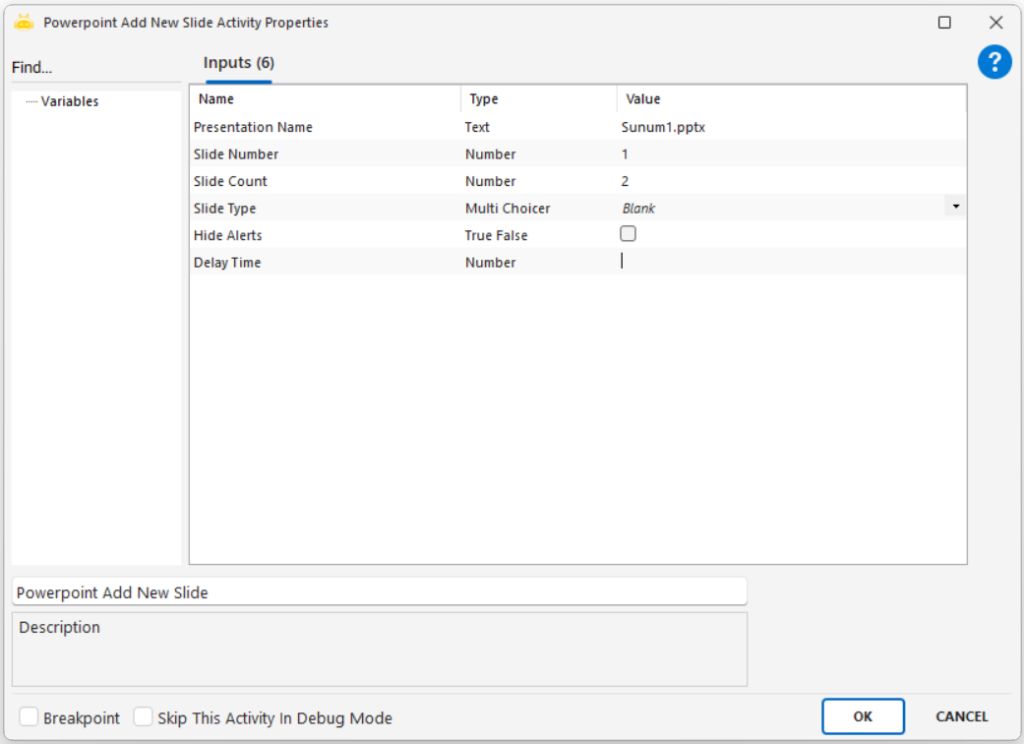
PowerPoint Add New Slide

PowerPoint Add New Slide activity is used to insert one or multiple new slides into a presentation at a specific position. The type and order of the added slides can be configured.

Usage Scenarios:

  • Dynamically adding slides to a presentation

  • Creating empty or content-ready slides in automated reports

  • Preparing an input section before a specific slide

  • Rearranging slide structure using automation

  • Generating pages during automated document creation

Parameters:

  • Presentation Name: Name of the PowerPoint file (for example: Presentation1.pptx)

  • Slide Number: The current slide number before which the new slide(s) will be added (for example: 1)

  • Slide Count: Number of slides to add (for example: 2)

  • Slide Type: Type of slide to insert (Blank, Title, Content, etc.)

  • Hide Alerts: Whether to hide alert messages (true/false)

  • Delay Time: Waiting time before the activity starts (in seconds)

Notes:

  • Slide Number determines where the new slides will be inserted

  • Slide Count must be greater than zero

  • Slide Type must match a valid PowerPoint template

  • If Delay Time is not provided, the activity starts immediately

  • Adding slides repeatedly at the same position may cause ordering issues

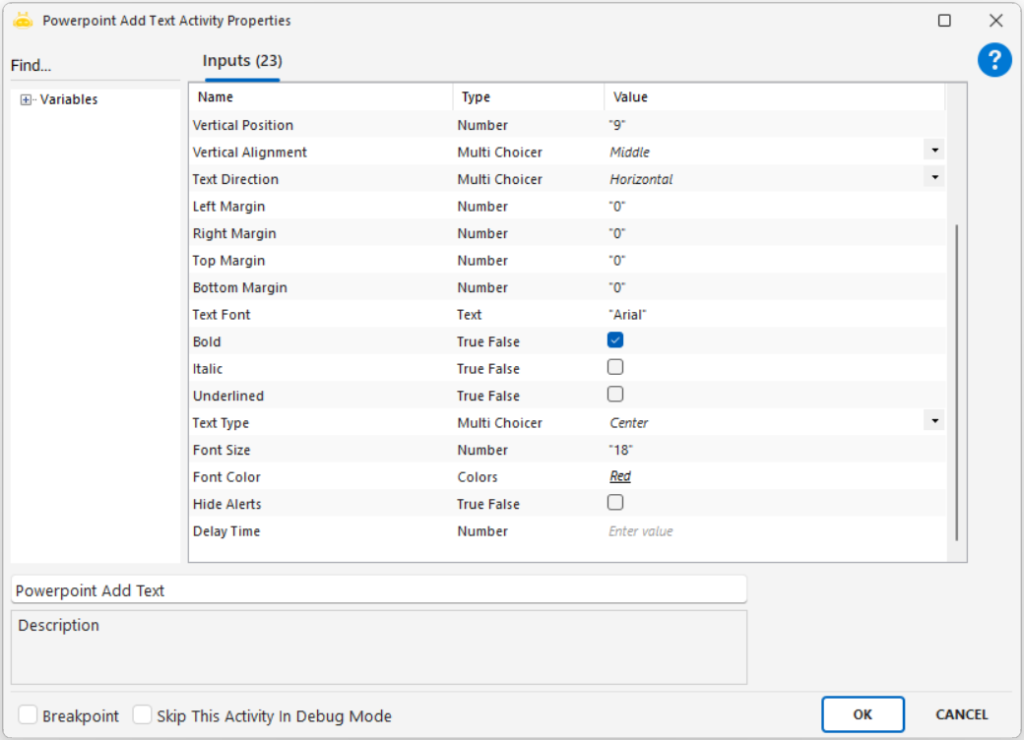
PowerPoint Add Text

PowerPoint Add Text activity is used to insert a text box into a specific slide in a PowerPoint presentation. The content, position, alignment, direction, and size of the text can all be customized.

Usage Scenarios:

  • Creating dynamic text fields in reports

  • Adding descriptive text to specific slides

  • Inserting content text during automated presentation generation

  • Placing information boxes next to charts or tables

  • Adding titles, descriptions, or notes

Parameters:

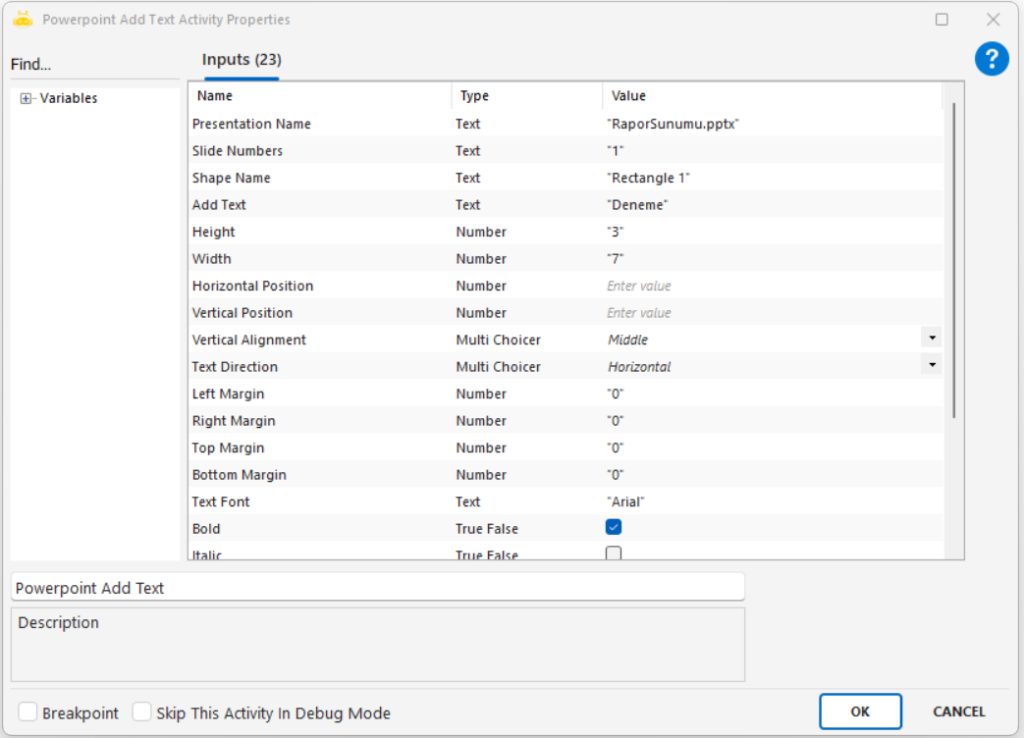
  • Presentation Name: Name of the PowerPoint file (for example: Presentation1.pptx)

  • Slide Numbers: Slide number where the text will be added (for example: 1)

  • Shape Name: Name of the shape where the text will be placed; if left empty, a new text box is created

  • Add Text: Text content to insert (for example: Deneme)

  • Height: Height of the text box (for example: 2)

  • Width: Width of the text box (for example: 3)

  • Horizontal Position: Horizontal position on the slide (for example: 16)

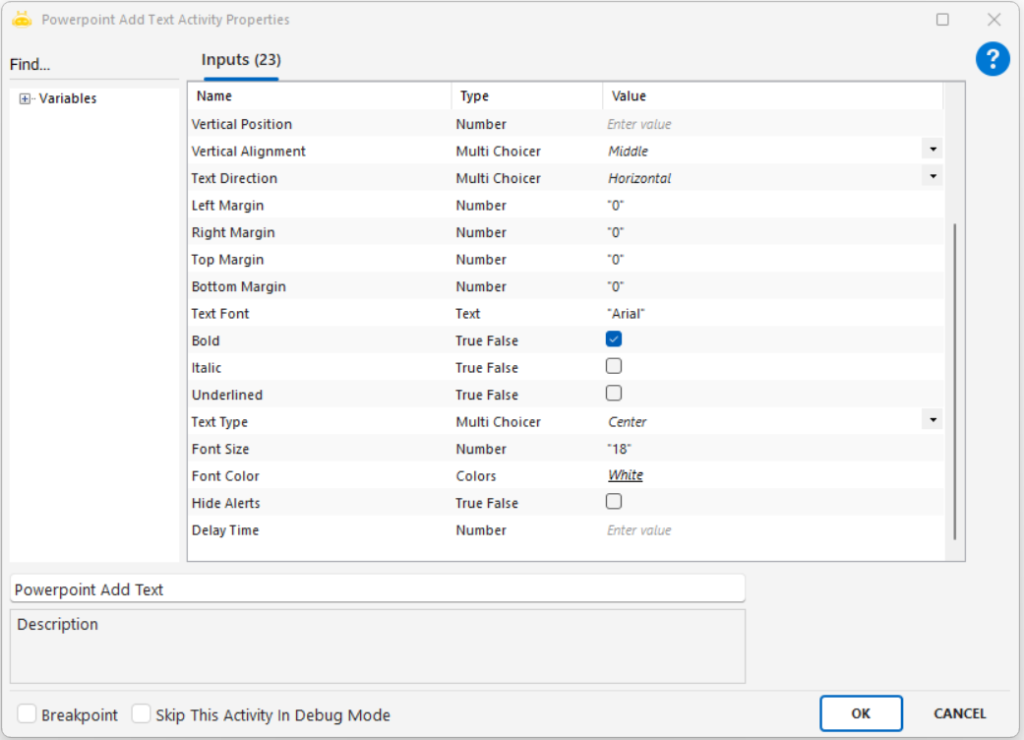
  • Vertical Position: Vertical position on the slide (for example: 9)

  • Vertical Alignment: Vertical alignment of the text (Top, Middle, Bottom)

  • Text Direction: Orientation of the text (Horizontal, Vertical)

  • Left Margin: Left margin value

  • Right Margin: Right margin value

  • Top Margin: Top margin value

  • Bottom Margin: Bottom margin value

  • Hide Alerts: Whether to hide alert messages (true/false)

  • Delay Time: Waiting time before execution (in seconds)

Notes:

  • If Shape Name is provided, text is written inside that shape; otherwise, a new text box is created

  • Text position must be proportionally aligned to slide dimensions

  • Margin values should be set as needed for proper alignment

  • If Delay Time is not specified, the action executes immediately

  • Special characters in the text content may affect slide formatting
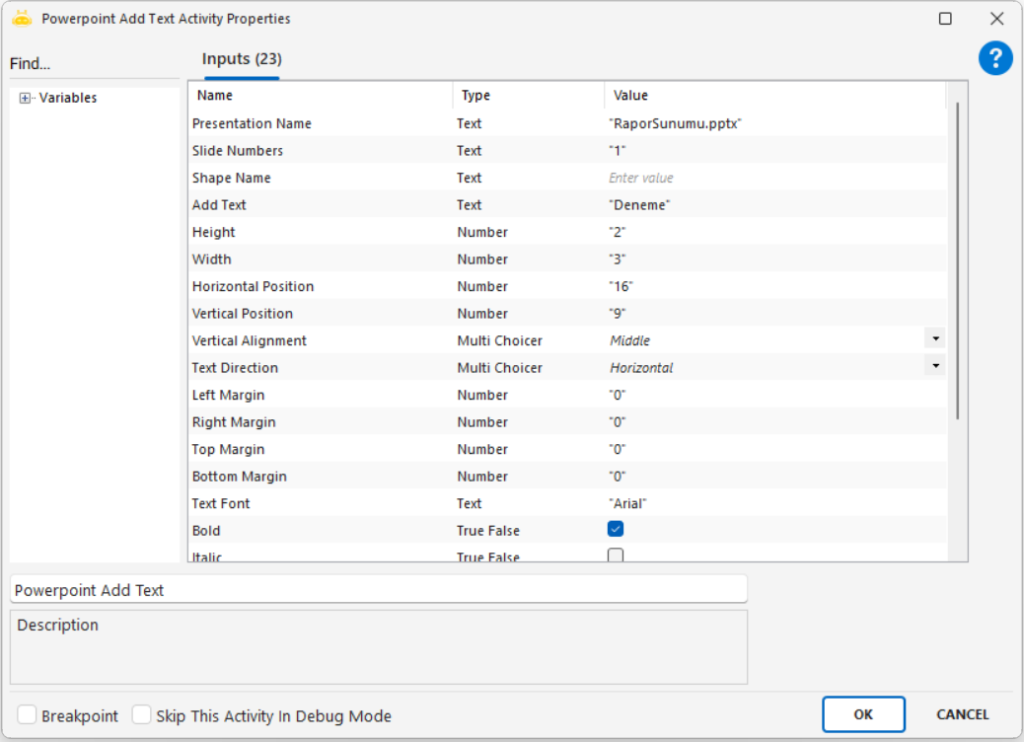
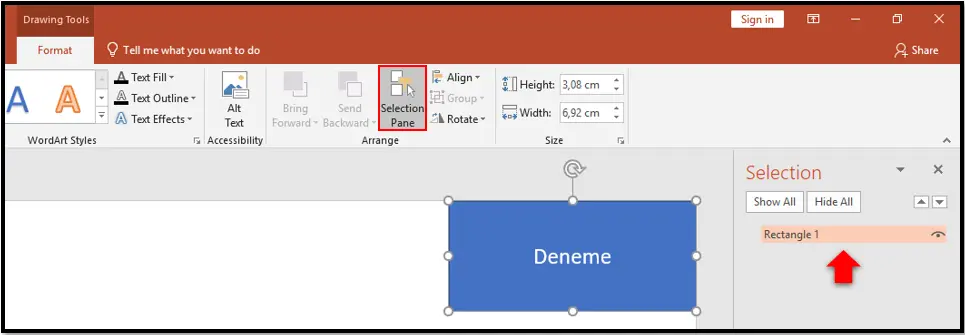
If there is an attached shape on the page you want to add text to, you can add text to it by typing the shape name in the “Shape Name” line.

Note: To learn the name of the shape attached to the slide, you can learn the name of the selected shape from the Format > Selection Pane menu.

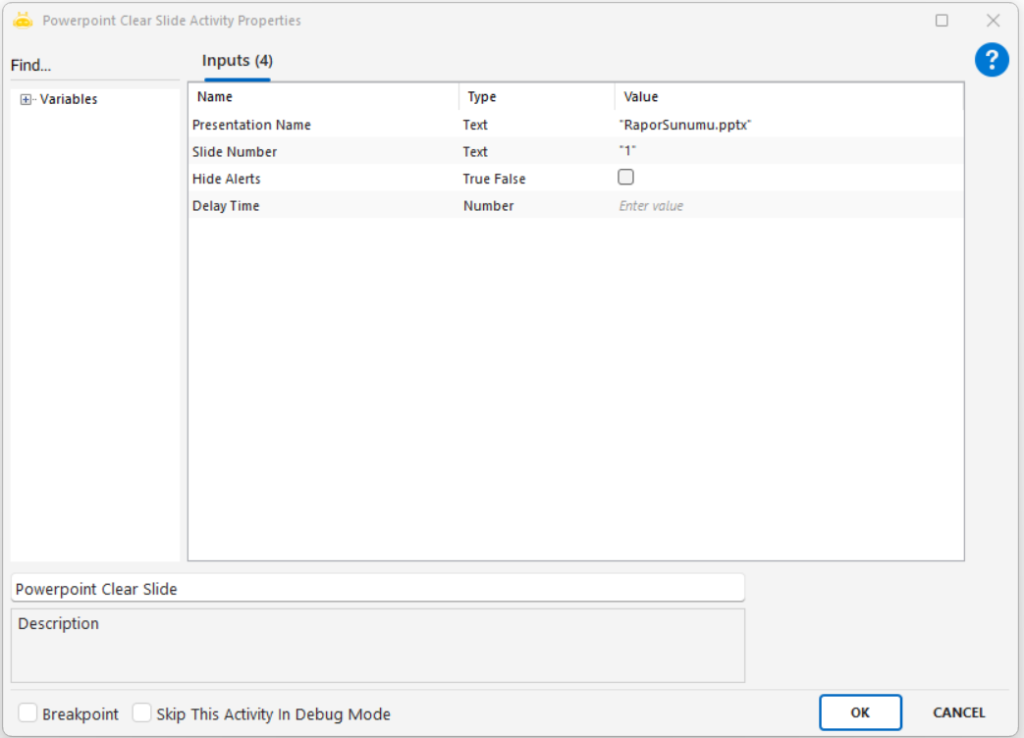
PowerPoint Clear Slide

PowerPoint Clear Slide activity is used to remove all content from a specified slide. All objects—including text boxes, tables, images, and videos—are deleted.

Usage Scenarios:

  • Resetting a previously filled slide in dynamic presentation generation

  • Ensuring a clean slate before updating slide content

  • Preparing a slide for reuse by clearing its contents

  • Automatically removing incorrect or outdated slide content

Parameters:

  • Presentation Name: Name of the PowerPoint file (for example: Presentation1.pptx)

  • Slide Number: Number of the slide to be cleared (for example: 1)

  • Hide Alerts: Whether to hide alert messages (true/false)

Notes:

  • The slide number must exist in the presentation

  • This action is irreversible; all objects on the slide are permanently deleted

  • If Delay Time is not specified, the action executes without delay

  • To display warnings, Hide Alerts should be set to false

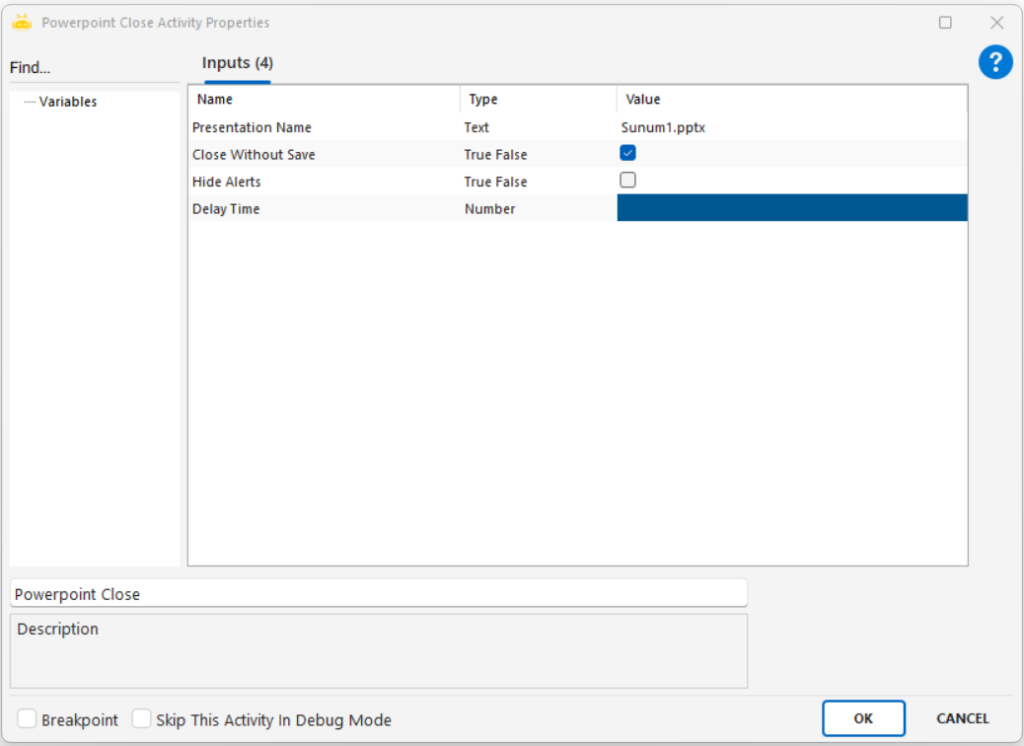
PowerPoint Close

PowerPoint Close activity is used to close an open PowerPoint presentation. The file can be closed with or without saving the changes.

Usage Scenarios:

  • Closing the presentation after all operations are completed

  • Closing the file without saving at the end of an automation

  • Ending test scenarios without modifying the file

  • Automatically closing temporarily opened presentations

Parameters:

  • Presentation Name: Name of the PowerPoint file to be closed (for example: Presentation1.pptx)

  • Close Without Save: Determines whether the file should be closed without saving (true/false)

  • Hide Alerts: Specifies whether alert messages should be hidden (true/false)

Notes:

  • If Close Without Save is set to true, all unsaved changes will be lost

  • The presentation name must be written correctly and the file must actually be open

  • If Hide Alerts is false, warning dialogs may appear during closing

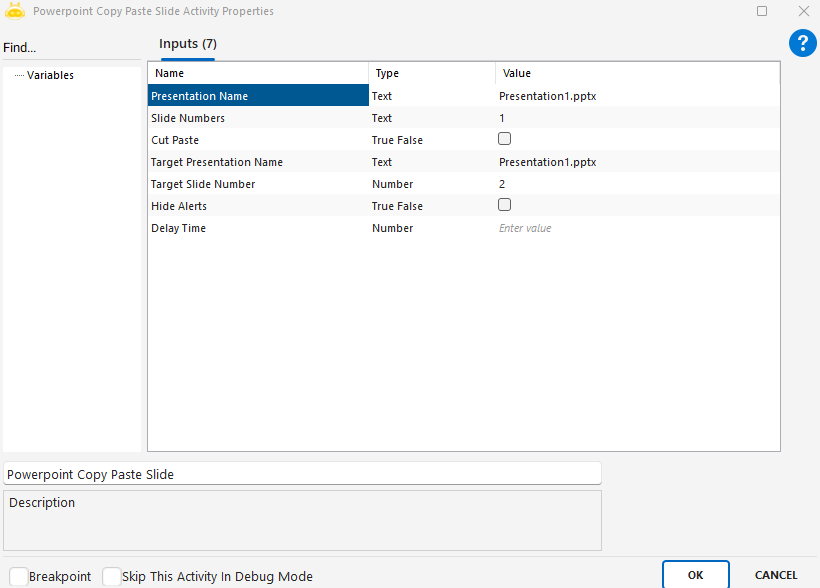
PowerPoint Copy Paste Slide

PowerPoint Copy Paste Slide activity is used to copy or move (cut and paste) a specified slide within the same PowerPoint file or into another PowerPoint file.

Usage Scenarios:

  • Duplicating a slide into another presentation or another position

  • Repeating specific slides within the same presentation

  • Moving slides between presentations to reorganize content

  • Building reusable templates by transferring slides

Parameters:

  • Presentation Name: Name of the source PowerPoint file (for example: Presentation1.pptx)

  • Slide Numbers: Slide number to be copied or moved (for example: 1)

  • Cut Paste: When true, the slide is cut; when false, it is copied

  • Target Presentation Name: Destination PowerPoint file (for example: Presentation1.pptx)

  • Target Slide Number: Position where the slide will be pasted (for example: 2)

  • Hide Alerts: Whether to hide alert messages (true/false)

Notes:

  • The slide specified in Slide Numbers must exist

  • If Cut Paste is true, the source slide is removed and pasted into the target

  • Target Slide Number must be within a valid slide range

  • When working across different presentation files, both must be open

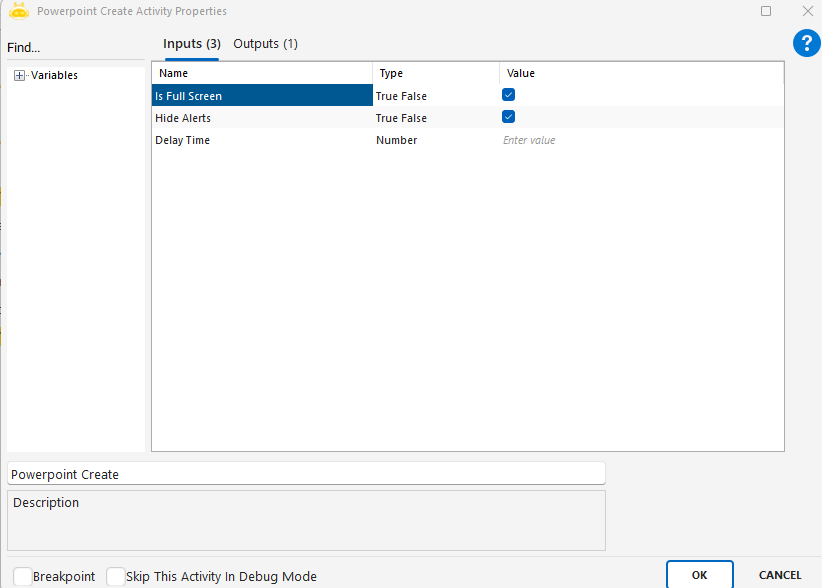
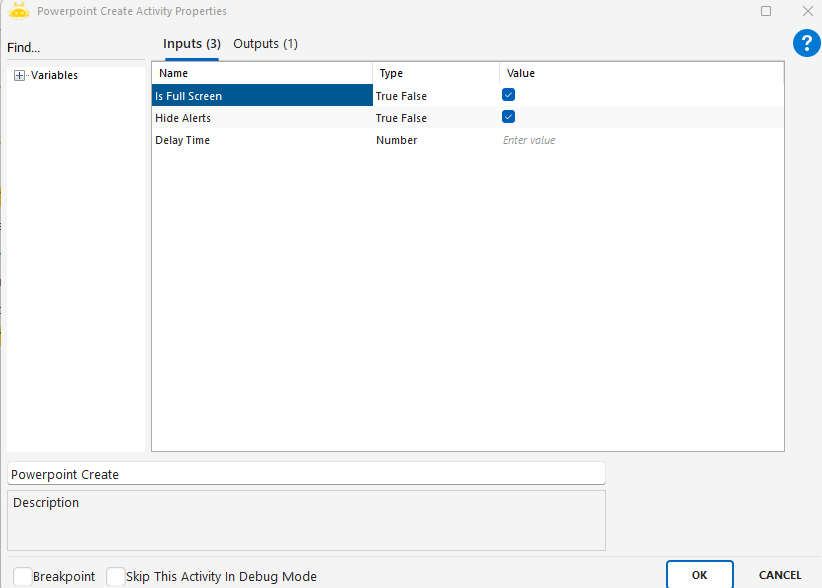
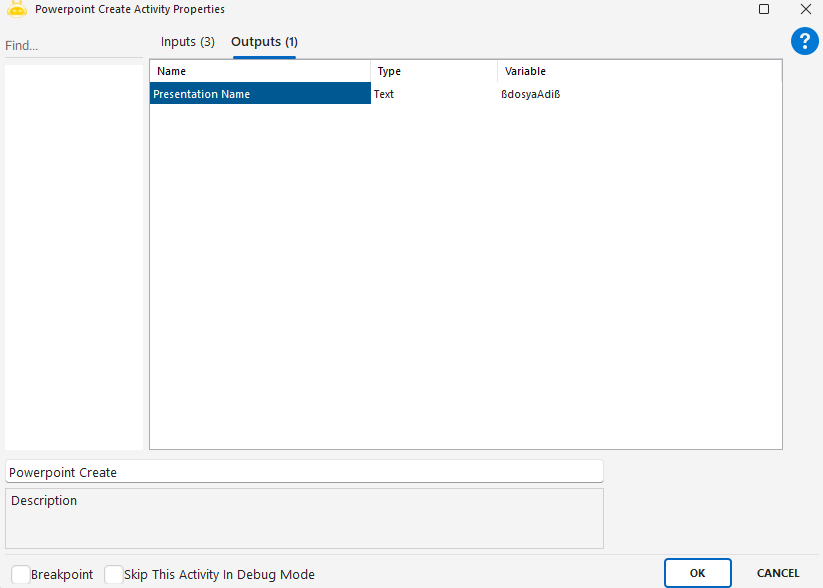
PowerPoint Create

PowerPoint Create Presentation activity is used to create a new PowerPoint file. The name of the newly created presentation can be stored in a variable and used in subsequent steps of the scenario.

Usage Scenarios:

  • Starting automated presentation generation from scratch

  • Creating a new file for each run in reporting processes

  • Preparing temporary presentations for testing or visual drafts

  • Generating presentations automatically without manual setup

Parameters:

  • This activity does not require parameters.
    The created presentation name is returned as an output variable.

Notes:

  • The output presentation name should be stored for use in later PowerPoint activities

  • A newly created presentation starts empty and must be populated with slides and content through

PowerPoint Delete Slide

ChatGPT:

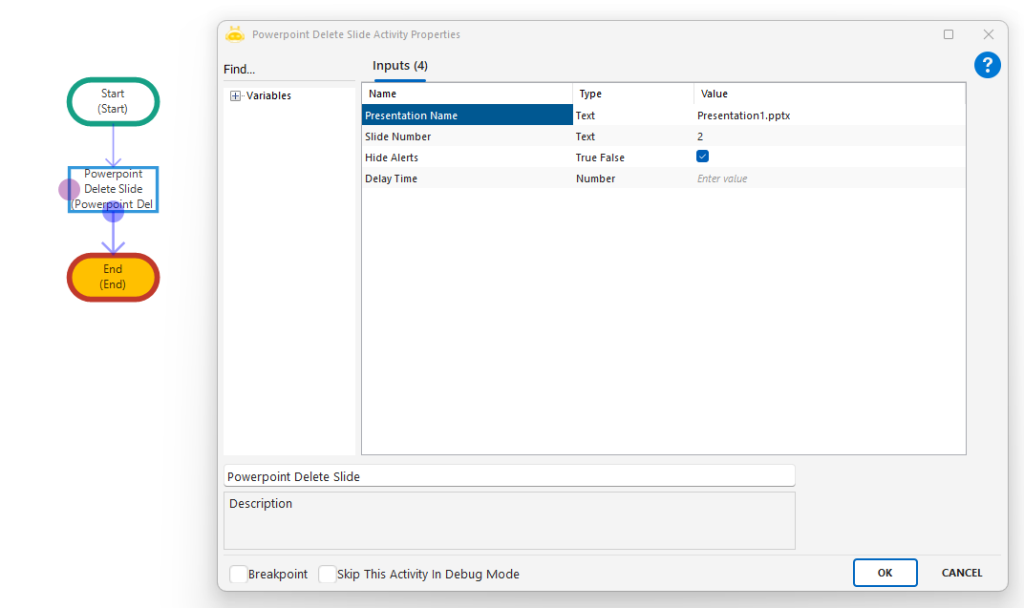
PowerPoint Delete Slide activity is used to delete a specific slide from a PowerPoint presentation. The slide is fully removed along with all of its content.

Usage Scenarios:

  • Removing incorrect or outdated slides

  • Dynamically deleting slides during automated presentation generation

  • Deleting temporary slides created during the process

  • Removing a slide based on a specific condition

Parameters:

  • Presentation Name: Name of the PowerPoint file containing the slide (for example: Presentation1.pptx)

  • Slide Number: Number of the slide to delete (for example: 2)

  • Hide Alerts: Whether to hide warning messages (true/false)

Notes:

  • Slide Number must be provided correctly; otherwise, the operation will fail

  • Slide deletion is irreversible

  • If Hide Alerts is set to false, a warning may be shown before deletion

  • At least one slide must remain in the presentation

PowerPoint Open

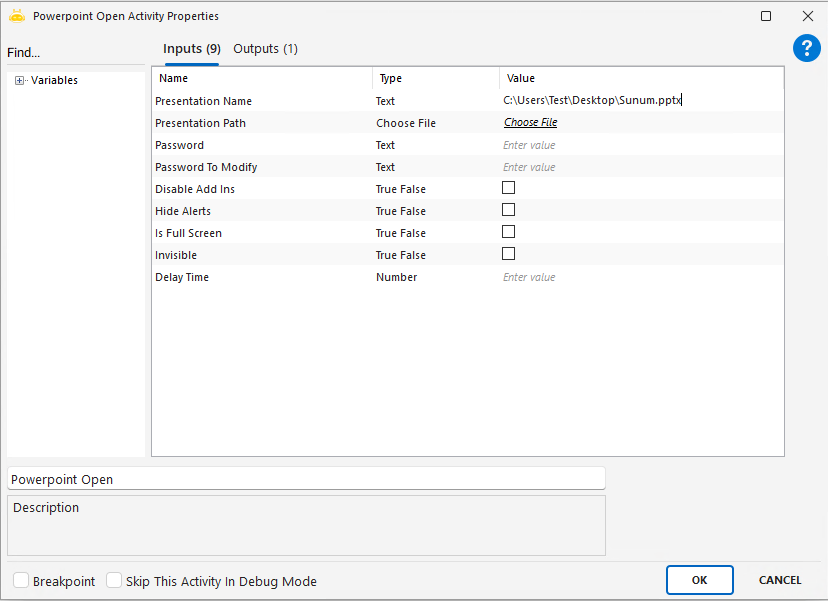
PowerPoint Open activity is used to open an existing PowerPoint presentation stored on the computer. The file can be opened with passwords if necessary, and the total slide count can be returned as an output variable.

Usage Scenarios:

  • Starting operations on an existing presentation

  • Making decisions based on the number of slides (via output)

  • Opening password-protected presentations for editing or viewing

  • Updating an existing presentation during automation

  • Opening the presentation in invisible or add-in–disabled mode when required

Parameters:

  • Presentation Name: Name used to reference the opened presentation (for example: Presentation1.pptx)

  • Presentation Path: Full file path of the PowerPoint file to open

  • Password: Password required to open the presentation (if any)

  • Password To Modify: Password required to allow editing (if any)

  • Disable Add Ins: Set to true to disable add-ins

  • Hide Alerts: Whether alert dialogs should be hidden (true/false)

  • Is Full Screen: Whether the presentation should open in full-screen mode (true/false)

  • Invisible: Whether the presentation should open in the background without being visible (true/false)

Notes:

  • Presentation Path must be correct and accessible

  • Opening will fail if a password-protected file is provided with the wrong password

  • When Invisible is true, the presentation window will not appear

  • Disabling add-ins may affect custom features or embedded components

  • The total slide count is provided as an output and can be used in later steps

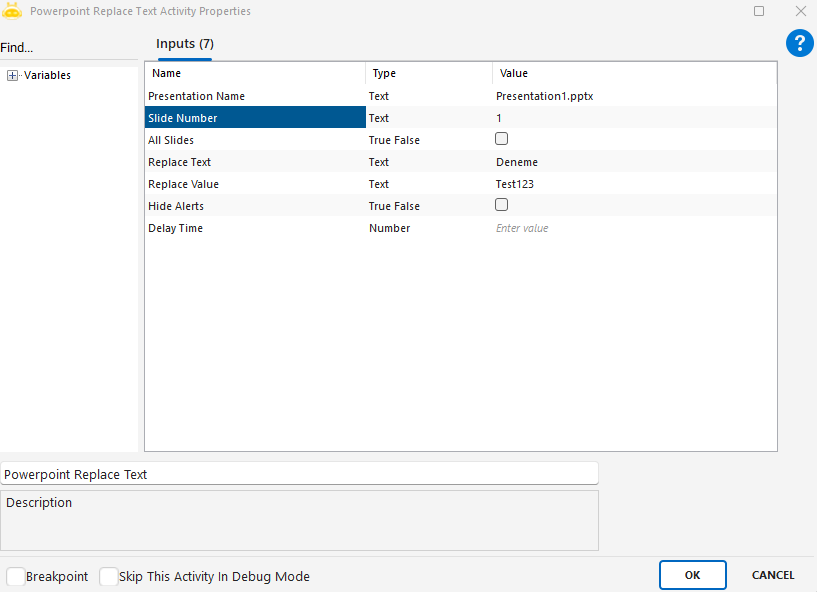
PowerPoint Replace Text

PowerPoint Replace Text activity is used to replace a specific word or text within a slide—or across the entire presentation—with a new value. It can operate on a single slide or all slides depending on the configuration.

Usage Scenarios:

  • Updating a specific word or phrase with new content

  • Replacing placeholders in template presentations with dynamic values

  • Performing bulk text updates to refresh presentation content

  • Replacing outdated information throughout the presentation

Parameters:

  • Presentation Name: Name of the PowerPoint file to modify (for example: Presentation1.pptx)

  • Slide Number: Slide number where the replacement will occur (for example: 1)

  • All Slides: Set to true to apply the replacement across all slides

  • Replace Text: The existing text to be replaced (for example: Deneme)

  • Replace Value: The new text to insert (for example: Test123)

  • Hide Alerts: Whether alert messages should be hidden (true/false)

Notes:

  • When All Slides is true, Slide Number is ignored

  • Text matching may be case-sensitive; ensure correct matching

  • The text must exist inside a shape, table, or text box for replacement to work

  • All matching instances within the selected scope will be replaced

  • Replacement will fail if the target text is outside the editable presentation area

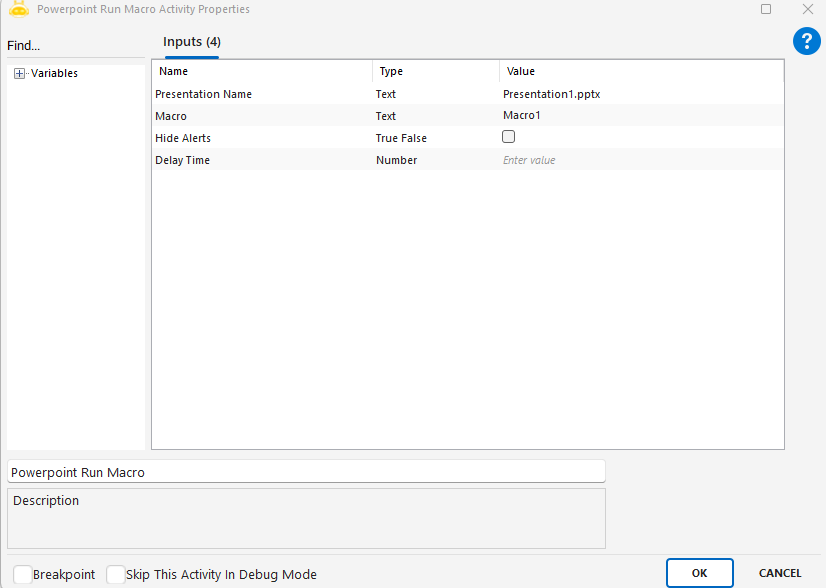
PowerPoint Run Macro

PowerPoint Run Macro activity is used to execute a pre-defined macro within a PowerPoint presentation. This allows VBA-based automations to be triggered directly by the robot.

Usage Scenarios:

  • Triggering custom operations previously prepared inside the presentation

  • Automating graphics, content formatting, or special transition effects

  • Running batch processes created with VBA inside PowerPoint

  • Executing internal scripts without user interaction

Parameters:

  • Presentation Name: Name of the PowerPoint file containing the macro (for example: Presentation1.pptx)

  • Macro: Name of the macro to be executed (for example: Macro1)

  • Hide Alerts: Whether to hide alert messages (true/false)

Notes:

  • The macro must already be defined within the presentation

  • PowerPoint macro security settings must allow macro execution

  • The presentation must be open, and the macro name must be valid

  • Running macros may trigger security warnings on the user’s system

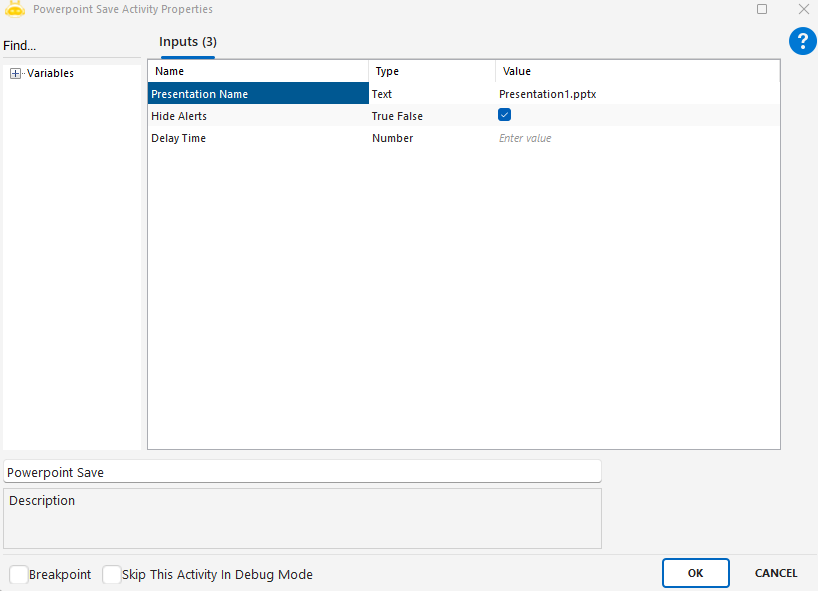
PowerPoint Save

PowerPoint Save activity is used to save a presentation that was previously opened using the PowerPoint Open activity. It ensures that all modifications made to the file are stored.

Usage Scenarios:

  • Saving changes made to a presentation through automation

  • Making added text, tables, and media elements permanent

  • Ensuring all updates are written before the file is closed

  • Automatically saving frequently updated presentations at the end of a process

Parameters:

  • Presentation Name: Name of the PowerPoint file to be saved (for example: Presentation1.pptx)

  • Hide Alerts: Whether alert messages should be hidden during the save process (true/false)

Notes:

  • The presentation name must be entered correctly, otherwise saving will fail

  • The file must already be opened and modified in memory

  • If Hide Alerts is set to false, warnings may appear during saving

  • Ensure all related tasks are completed before executing the save operation

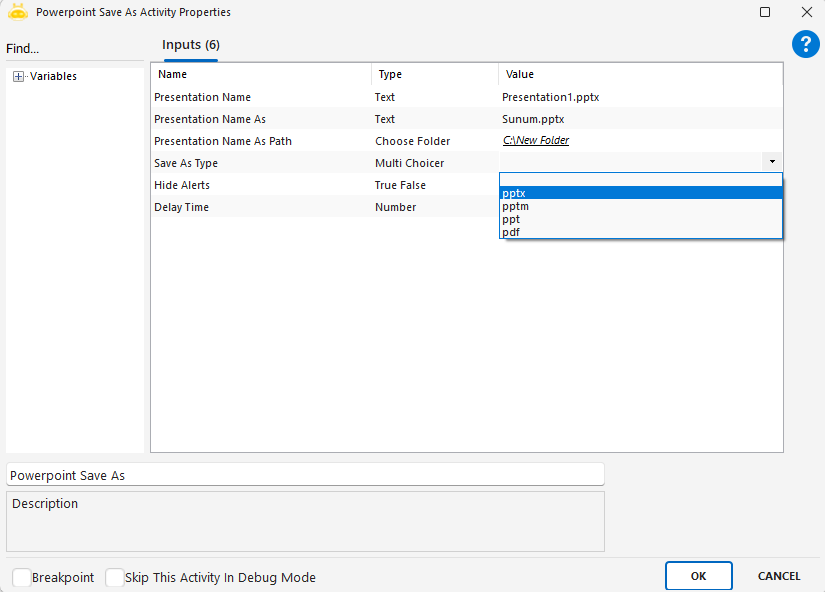
PowerPoint Save As


Açık olan PowerPoint sunum dosyasını farklı bir isimle, farklı bir formatta (örneğin pptx, pdf) ve farklı bir klasöre kaydetmek için kullanılır.

Kullanım Senaryoları:

  • Sunumu hem orijinal hem de yeni bir isimle yedeklemek.
  • Sunumu farklı uzantılarla (ppt, pdf, pptm) dışa aktarmak.
  • Otomasyon sonucunda oluşturulan dosyayı kullanıcıya özel ad ve konumla kaydetmek.
  • Slaytları PDF raporu olarak arşivlemek veya paylaşmak.
  • Aynı sunumu birden çok formatta kaydetmek.

Parametreler:

  • Presentation Name: Kaynağı oluşturan açık sunumun adı (örn: “Presentation1.pptx”)
  • Presentation Name As: Yeni dosya adı (örn: “Sunum1.pptx”)
  • Presentation Name As Path: Yeni dosyanın kaydedileceği klasör (örn: “C:\New folder”)
  • Save As Type: Kaydedilecek dosya formatı (pptx, pptm, ppt, pdf)
  • Hide Alerts: Uyarılar gizlensin mi? (true/false)
  • Delay Time: İşlem öncesinde bekleme süresi (saniye cinsinden)

Dikkat Edilmesi Gerekenler:

  • Belirtilen klasör yolu mevcut olmalı, aksi takdirde kayıt başarısız olur.
  • Dosya uzantısı Save As Type ile uyumlu olmalıdır (örn: pptx için uzantı da .pptx olmalı).
  • PDF formatında kaydederken bazı animasyon ve geçiş efektleri dışa aktarılmaz.
  • Mevcut isimde bir dosya varsa üzerine yazılır (önceden kontrol edilmelidir).
  • Farklı formatlara çevrim süresi dosya boyutuna göre değişiklik gösterebilir.

Do you want to have Digital Employees?