Global Bilgi RPA (EN)

Outlook

Outlook

Aktiviteler

Create Appointment

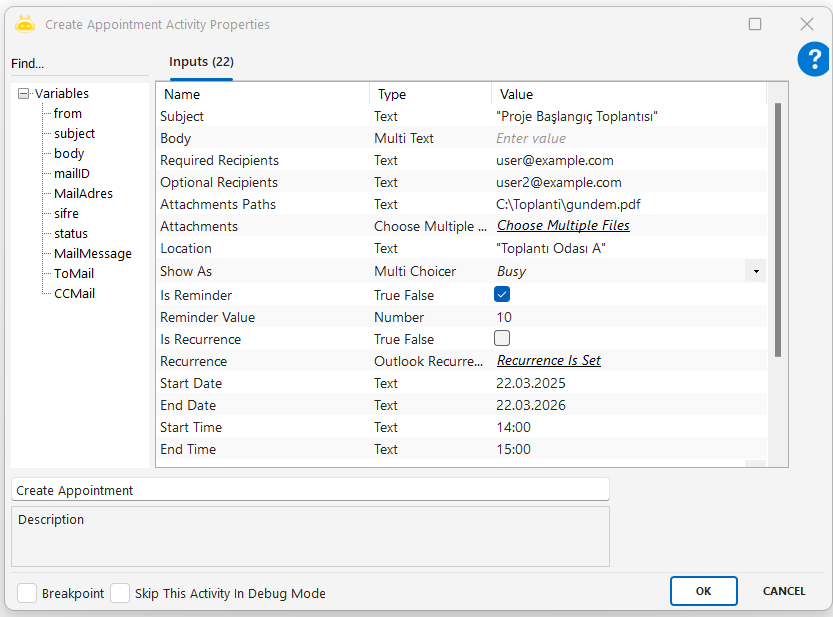
Create Appointment activity is used to create a meeting or event in the calendar. It supports date, time, subject, attendees, attachments, reminders, and recurrence settings, allowing you to generate Outlook-synchronized appointments. Events can be one-time or recurring.

Usage Scenarios:

  • Automatically creating invitations for project or team meetings

  • Adding system maintenance or training dates to the calendar

  • Setting reminders for specific tasks as appointments

  • Sending meeting invites with attachments to participants

  • Creating appointments that are only saved or automatically sent

Parameters:

  • Subject: Event subject (for example: Proje Başlangıç Toplantısı)

  • Body: Description or agenda of the event (for example: Toplantı gündemi: görev dağılımı, teslim tarihleri)

  • Required Recipients: Email addresses of mandatory participants (for example: ali@example.com, ayse@example.com)

  • Attachments Paths: Full file paths of documents to attach (for example: C:\Toplanti\gundem.pdf)

  • Attachments: Names of attached files (for example: sunum.pptx)

  • Location: Meeting location (physical or online)

  • Show As: How the event appears in the calendar (for example: Busy)

  • Is Reminder: Whether a reminder should be sent (true/false)

  • Reminder Value: Minutes before the event when the reminder should appear

  • Is Recurrence: Whether the event is recurring (true/false)

  • Recurrence: Recurrence pattern (for example: Every Tuesday at 10:00 for 4 weeks)

  • Start Date: Start date of the event

  • End Date: End date of the event

  • Start Time: Start time of the event

  • End Time: End time of the event

  • Importance: Priority level (for example: High)

  • From: Email address of the organizer

  • All Day Event: Whether the event lasts all day

  • Is Send: Whether invitations should be sent automatically

  • Is Save: Whether the appointment should only be saved without sending

Notes:

  • Subject, Required Recipients, and Start/End Date must not be empty

  • Email addresses must be in valid format

  • File paths must be correct and accessible

  • Date and time formats must be valid; End date/time must not be earlier than Start

  • If Is Recurrence is true, the Recurrence field must be defined

  • If Is Reminder is true, Reminder Value must be provided

Delete Outlook Mail

Used to delete emails in an Outlook account based on specific filters. Supports deleting by subject, sender, read status, folder, or specific mail IDs. Can delete the first or last email and perform permanent deletion.

Usage Scenarios
• Cleaning emails from a specific sender
• Automatically deleting mails older than a certain period
• Removing duplicates after automated processing
• Emptying a target folder regularly
• Deleting emails with a specific subject

Parameters
Account: Outlook account to operate on (example: “test@globalbilgi.com.tr”)
Mail Folder: Folder name where deletion will occur (example: “Inbox”)
Subject Filter: Filter by subject text (example: “Test”)
Un Readed: Delete only unread emails?
From: Filter by sender address (example: “test@globalbilgi.com.tr”)
Mail Id: Delete by unique mail ID (example: “123456789”)
Delete Permanantly: Permanently delete without moving to trash?
Delete Last Mail: Delete only the last email in the folder?
Delete First Mail: Delete only the first email in the folder?

Important Notes
• Folder names must match Outlook structure.
• Filters should be used carefully to avoid deleting the wrong emails.
• Permanent deletes cannot be recovered.
• For large mail volumes, looped deletion is recommended.
• Always verify the existence of matching emails before deletion.

Get Mail

Used to retrieve emails from a mailbox based on specific filters. It can read emails from a given folder, filter by subject or sender, download attachments, select only unread emails, or fetch only the last received email. Emails can optionally be converted to plain text, marked as read, or moved to the trash.

Usage Scenarios:

  • Retrieving emails with a specific subject or sender and processing them in sequence

  • Checking emails with attachments and downloading the attached files

  • Fetching unread emails from the inbox and sending the content for analysis

  • Using incoming emails as triggers in automated processes (for example, starting a process from a new order email)

Parameters:

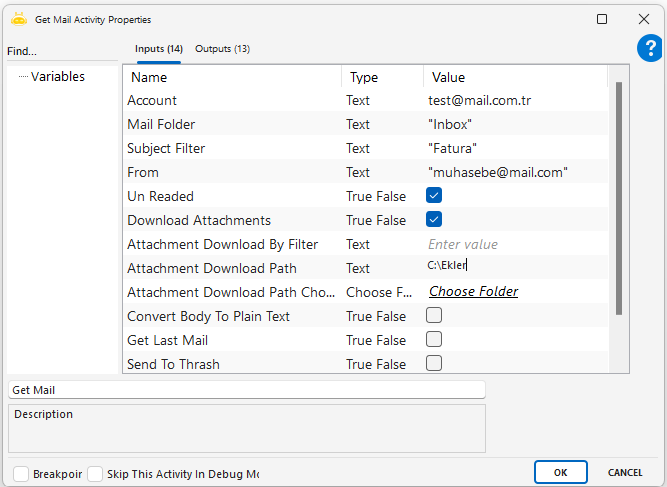
  • Account: Email account to be used for the operation (for example: test@mail.com.tr)

  • Mail Folder: Folder from which emails will be read (for example: Inbox)

  • Subject Filter: Filters emails by subject text (for example: Fatura)

  • From: Filters emails by sender address (for example: muhasebe@mail.com)

  • Un Readed: Whether only unread emails should be retrieved (for example: True)

  • Download Attachments: Whether attachments should be downloaded (for example: True)

  • Attachment Download By Filter: When used, only attachments whose name or extension matches the filter (for example: .pdf, fatura) are downloaded

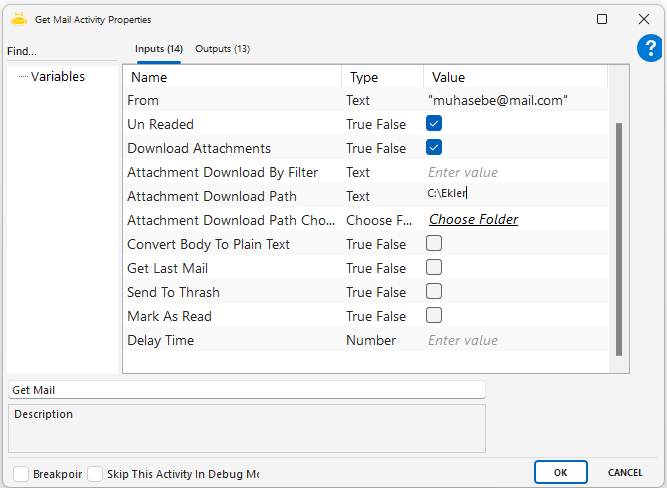
  • Attachment Download Path: Folder path where attachments will be saved (for example: C:\Ekler)

  • Attachment Download Path Choose: Allows manual selection of the folder where attachments will be saved

  • Convert Body To Plain Text: Whether the email body should be converted to plain text

  • Get Last Mail: Whether only the most recently received email should be retrieved

  • Send To Thrash: Whether the email should be moved to the trash after retrieval

  • Mark As Read: Whether the email should be marked as read after retrieval

Outputs:
Get Mail returns multiple values via output variables, such as sender (Sender), recipients (To, Cc, Bcc), subject (Subject), body content (Body), send date and time (Date, Time), downloaded attachment paths (DownloadedAttachmentPaths), and the unique identifier of the email (MailId). These values can be used for analysis, logging, routing, or further processing in automation workflows.

Notes:

  • Account must contain a valid, configured email address; otherwise, the connection cannot be established

  • Mail Folder should be a correct full path (for example: Inbox or Inbox\SubFolder)

  • Overly restrictive values in Subject Filter or From may result in no emails being returned

  • When Un Readed is true, only unread emails are retrieved; if Mark As Read is not used, the same emails may be fetched again on the next run

  • If Download Attachments is true, Attachment Download Path or Attachment Download Path Choose must be set; otherwise, attachments cannot be saved

  • Only one of Attachment Download Path or Attachment Download Path Choose should be active; if both are empty, no attachments will be downloaded

  • When Attachment Download By Filter is used, only attachments matching the filter (for example: .pdf, fatura) are downloaded

  • If Get Last Mail is enabled, only the latest email is returned and other filters may be ignored

  • Send To Thrash and Mark As Read should be used carefully to avoid unintended deletion or visibility issues

Mark Outlook Mail

Used to mark emails in Outlook folders based on specific criteria. The most common use is marking emails as read. The activity can filter by subject, sender address, unread status, email ID, and can optionally target only the first or last email in a folder.

Usage Scenarios:

  • Mark unread emails with a specific subject as read (for example: subject “erp”)

  • Mark only the last email in the inbox as read to avoid processing multiple messages

  • After processing emails from a specific sender, mark them as read (for example: erp@firma.com)

  • Target a specific email using its MailId and mark it as read

  • Mark the first (oldest) email in the folder to trigger follow-up actions

  • Prevent reprocessing by marking filtered emails as read after handling them

Parameters:

  • Account: Outlook account used for the operation (for example: test@globalbilgi.com.tr)

  • Mail Folder: Folder in which the operation will be performed (for example: Inbox)

  • Subject Filter: Filters emails by subject text (for example: erp)

  • Un Readed: Whether only unread emails should be targeted

  • Mark Last Mail: Whether only the last email in the folder should be marked

  • Mark First Mail: Whether only the first email in the folder should be marked

  • From: Filters emails by sender address (for example: erp@firma.com)

  • Mail Id: Targets a specific email using its unique identifier (for example: MSG123456789)

  • Mark As Read: Whether the email should be marked as read

Notes:

  • Account must contain a valid Outlook address for the mailbox to be accessed

  • Mail Folder should be specified correctly (Inbox, Inbox\SubFolder, etc.)

  • Subject Filter and From should be used carefully to avoid missing intended emails

  • When Mark Last Mail or Mark First Mail is used, other filters may be overridden

  • Mail Id should match exactly; otherwise no email will be updated

  • Mark As Read should be enabled to complete the marking action

Move Outlook Mail

Used to move emails in Outlook to another folder based on defined filter criteria. The most common scenario is moving specific emails from the inbox to an archive or processing folder after handling them. The activity can filter by subject, sender, unread status, email ID, and can optionally target only the first or last email.

Usage Scenarios:

  • Move unread emails with a specific subject

  • Move only the last email to prevent reprocessing

  • Move emails from a specific sender

  • Move a single email using its MailId

  • Move the first (oldest) email to trigger pending processes

Parameters:

  • Account: Outlook account used for processing (for example: test@globalbilgi.com.tr)

  • Mail Folder: Source folder where emails are searched (for example: Inbox)

  • Subject Filter: Filters emails by subject text (for example: erp)

  • Un Readed: Whether only unread emails should be targeted

  • From: Filters emails by sender address (for example: erp@firma.com)

  • Mail Id: Targets a specific email using its unique identifier (for example: MSG123456789)

  • Destination Folder: Target folder where the email will be moved (for example: Inbox\Test)

  • Move Last Mail: Whether only the newest email should be moved

  • Move First Mail: Whether only the oldest email should be moved

Notes:

  • Source folder must be correctly defined (for example: Inbox)

  • Destination folder must already exist in Outlook; otherwise the move will fail

  • Subject and From filters must be used carefully to avoid missing intended emails

  • When targeting by MailId, ensure the ID is captured correctly

  • For large volumes of emails, validate the result set before moving to avoid unintended bulk moves

  • Use filters such as “Move Last Mail” to avoid processing the same email multiple times

  • Outlook must be active and the session available to avoid connection errors

Reply Outlook Mail

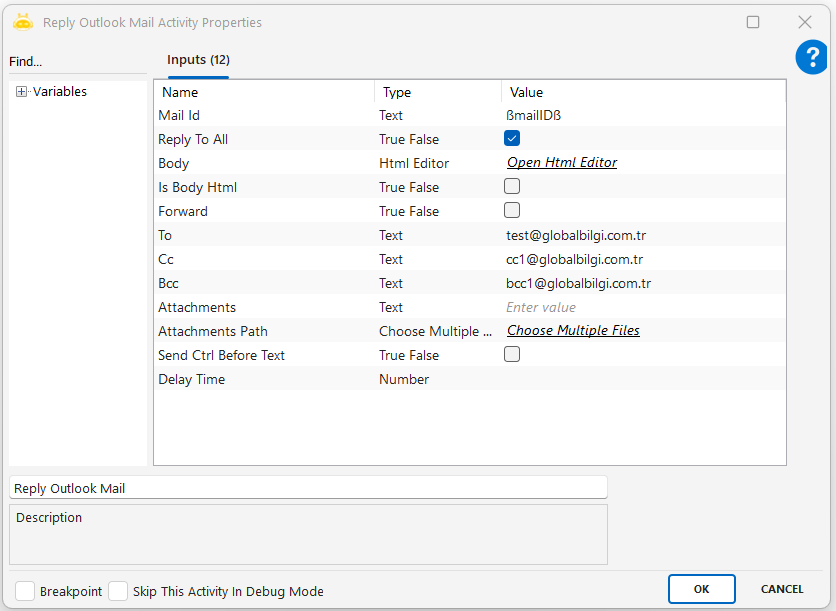
Used to reply to an existing Outlook email using its MailId. The reply can be sent to a single recipient or all original recipients, with support for HTML body content, To/Cc/Bcc fields, and file attachments. If needed, a Ctrl key trigger can be sent before writing the body.

Usage Scenarios:

  • Reply automatically to an incoming email with predefined content

  • Use Reply To All to respond to every recipient

  • Send a formatted HTML reply

  • Add To, Cc, and Bcc recipients for visibility control

  • Include attachments in the reply

  • Trigger Ctrl before writing the body if a custom input action is required

Parameters:

  • Mail Id: Identifier of the email to reply to (for example: MSG123456789)

  • Reply To All: Whether the reply should be sent to all recipients

  • Body: Reply message content (for example: Thank you, received.)

  • Is Body Html: Whether the body content is in HTML format

  • To: Primary recipients (for example: test@globalbilgi.com.tr)

  • Cc: Carbon copy recipients (for example: cc1@globalbilgi.com.tr)

  • Bcc: Blind carbon copy recipients (for example: bcc1@globalbilgi.com.tr)

  • Attachments: Names of attachments to include (for example: rapor.pdf, ek1.xlsx)

  • Attachments Path: Folder path where attachment files are located (for example: C:\Dosyalar\Ekler)

  • Send Ctrl Before Text: Whether Ctrl should be triggered before writing the body

Notes:

  • The Mail Id must refer to an existing and accessible email

  • Body should not be empty unless an empty reply is intended

  • The sending account must have permission to send replies

  • The original email must not be deleted or moved before replying

  • Attachment paths must be valid and files accessible

  • Use auto-send features carefully in test environments

  • Outlook must be open and the session active to avoid connection errors

Save Mail

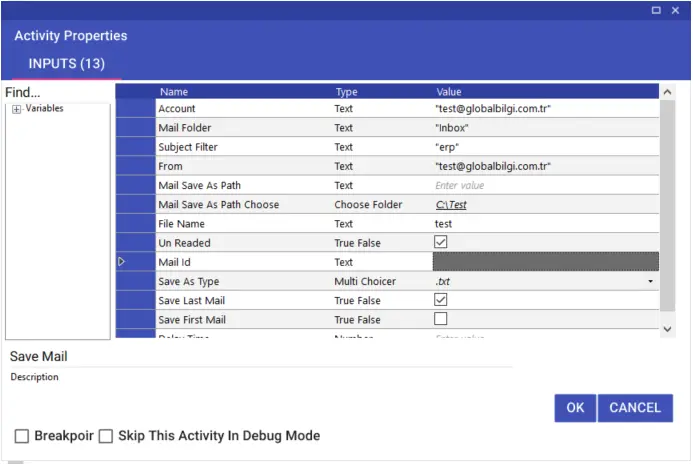
Used to filter emails in an Outlook account and save them as .txt, .html, or .msg files. Emails can be selected by subject, sender, folder, unread status, or MailId. The save location, file name, and whether to save the first or last email can be customized.

Usage Scenarios:

  • Save unread emails as .txt, .html, or .msg

  • Save emails with a specific subject to a folder

  • Save only the last received email to avoid reprocessing

  • Convert emails from a specific sender into files

  • Create a systematic archive by customizing file names and save locations

Parameters:

  • Account: Outlook account to read emails from (for example: test@globalbilgi.com.tr)

  • Mail Folder: Folder to search emails in (for example: Inbox)

  • Subject Filter: Filter emails by subject (for example: erp)

  • From: Filter by sender address (for example: test@globalbilgi.com.tr)

  • Mail Save As Path: Manual save directory (for example: C:\Test)

  • Mail Save As Path Choose: Directory selection dialog

  • File Name: Name of the saved file (for example: test)

  • Un Readed: Whether to target only unread emails

  • Mail Id: Specific email identifier (for example: MSG123456789)

  • Save As Type: File format (.txt, .html, .msg)

  • Save Last Mail: Save only the last email

  • Save First Mail: Save only the first email

Notes:

  • Ensure the selected email exists, especially when using MailId

  • Save directory must exist and be accessible

  • File type must be supported by the system

  • If a file with the same name exists, it may be overwritten

  • Check whether attachments are included depending on feature support

  • Outlook must be open and connected

  • Avoid special characters or unsupported symbols in file paths

Send Mail

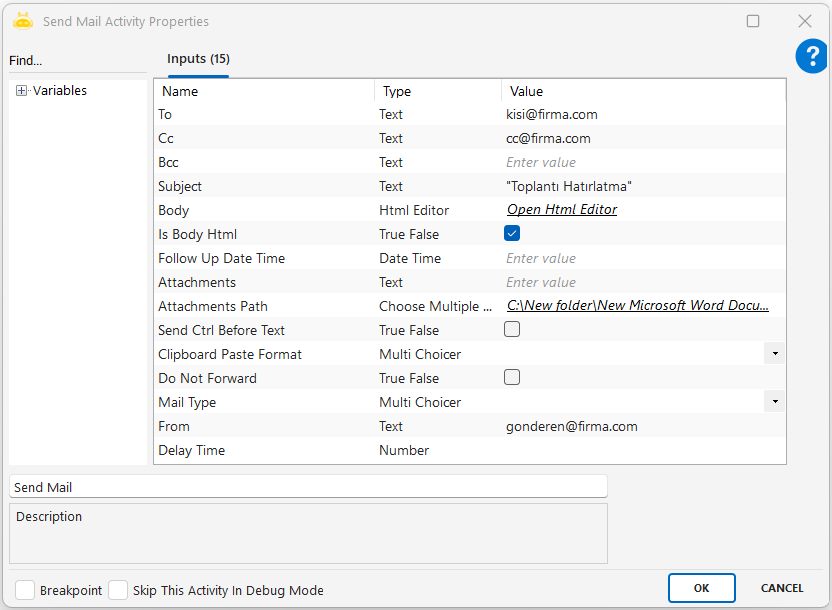
Send Mail, belirlenen alıcılara Outlook üzerinden e-posta göndermek için kullanılır. Aktivite içerisinde konu, içerik, alıcılar (To, Cc, Bcc), HTML body, ek dosyalar gibi tüm alanlar özelleştirilebilir. Ayrıca, e-postanın yönlendirilmesini engelleme ve gönderim öncesi Ctrl tetikleme gibi gelişmiş özellikleri de içerir.

Kullanım Senaryoları:

  • Belirli bir alıcıya HTML formatlı bilgilendirme maili gönderilir.
  • Ek dosyalarla birlikte otomatik raporlama e-postaları yollanır.
  • “Do Not Forward” ile içeriğin paylaşılması engellenir.
  • Body öncesi Ctrl gönderilerek Outlook penceresinin odaklanması sağlanır.

Parametreler:

  • To: E-posta gönderilecek ana alıcı(lar). Örnek: kisi@firma.com
  • Cc: Kopya alacak kişi(ler). Örnek: cc@firma.com
  • Bcc: Gizli kopya alacak kişi(ler). Örnek: bcc@firma.com
  • Subject: E-posta başlığı. Örnek: “Toplantı Hatırlatma”
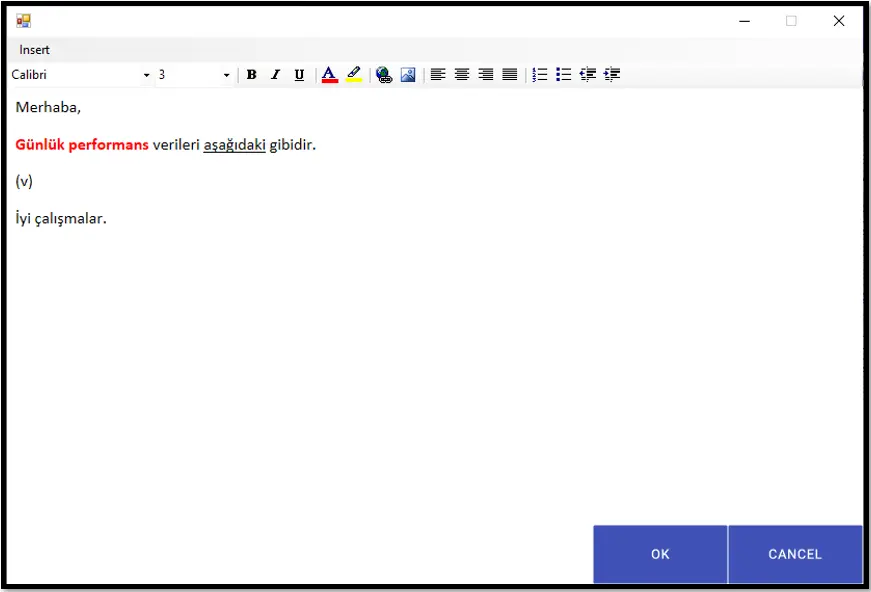
  • Body: E-posta içeriği (HTML desteklenir). Örnek: “<p><b>Merhaba</b></p>”
  • Is Body Html: İçerik HTML formatında mı?
  • Follow Up Date Time: Takip tarihi. Örnek: “2025-04-01 10:00”
  • Attachments: Eklenecek dosya ad(lar)ı (virgülle ayrılmış). Örnek: “rapor.pdf,ek1.xlsx”
  • Attachments Path: Ek dosya yolları. Örnek: “C:\Dosyalar\Raporlar”
  • Send Ctrl Before Text: Gövde yazılmadan önce Ctrl tuşu gönderilsin mi?
  • Do Not Forward: E-posta yönlendirmesi engellensin mi?
  • Mail Type: Kullanılan e-posta servisi türü. Örnek: Exchange
  • From: E-posta gönderen hesap. Örnek: robotics@yourdomain.com

Dikkat Edilmesi Gerekenler:

  • Alıcı adres(ler)i geçerli formatta ve boş olmamalıdır, aksi halde mail gönderimi başarısız olur.
  • Konu (Subject) ve içerik (Body) alanları dolu olmalıdır.
  • HTML içerik kullanılacaksa Is Body Html seçeneği True olarak ayarlanmalıdır.
  • Ek dosya yolları doğru tanımlanmalı, dosyalar erişilebilir konumda olmalıdır.
  • Attachments Path geçersizse dosya eklenmez, sistem uyarı verir.
  • From alanı, mail gönderme yetkisi olan geçerli bir kullanıcıya ait olmalıdır.
  • Gönderimle ilgili hesap, bağlantı ve yetki ayarları önceden test edilmelidir.

Set Mail Categories

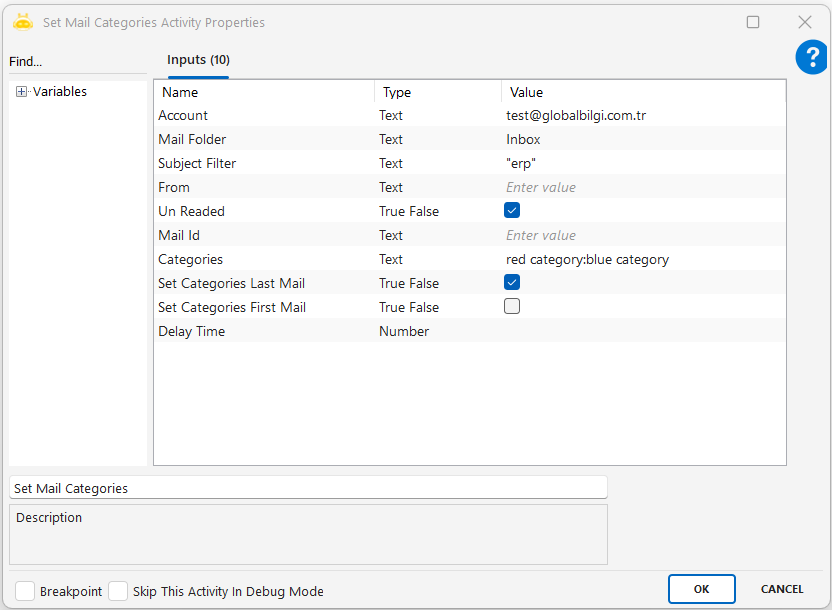
Used to assign one or more category labels to Outlook emails. Categories help organize, filter, group, and visually differentiate emails. The activity can categorize mails found through filters such as subject, sender, unread status, or Mail ID.

Usage Scenarios:

  • Assign “blue category” to unread emails with subject containing “ERP”

  • Mark emails from a specific sender with “red category” for priority

  • Categorize the latest email to trigger a follow-up workflow

  • Categorize a single mail using its Mail ID

Parameters:

  • Account: Outlook account to be used (example: test@globalbilgi.com.tr)

  • Mail Folder: Folder to search in (example: Inbox)

  • Subject Filter: Filter by subject (example: erp)

  • From: Filter by sender email (example: test@globalbilgi.com.tr)

  • Un Readed: Target only unread emails

  • Mail Id: Apply category to a specific email (example: MSG123456789)

  • Categories: Categories to assign (semicolon or comma separated)

  • Set Categories Last Mail: Categorize only the latest email

  • Set Categories First Mail: Categorize only the first (oldest) email

Notes:

  • Category names must already exist in Outlook; otherwise they will not be applied

  • If Mail Id is provided, other filters may be ignored

  • Set Categories Last Mail and Set Categories First Mail must not both be True

  • Account name must be valid; otherwise no action is taken


Do you want to have Digital Employees?